How to Integrate Notion With Google Calendar for a “Lean” Productivity Stack

You know that feeling when you have fifteen tabs open, three different apps for your to-do list, and a physical planner that you haven't touched in three weeks? It's called app fatigue, and it’s the number one enemy of student success.
When you’re juggling midterms, club meetings, and a social life, the last thing you need is a complicated system that takes more time to manage than the actual work you're doing. You need a lean productivity stack.
By integrating Notion with Google Calendar, you can create a centralized command center that handles your deadlines, your schedule, and your notes in one place. Ready to streamline your life and get your time back? Let’s dive into how you can build a system that actually works for you.
Why You Need a "Lean" Productivity Stack
Before we get into the "how," we need to talk about the "why." A lean productivity stack is all about efficiency. Instead of using a dozen niche apps, you focus on a few "powerhouse" tools that communicate with each other. For most students, this means combining the database power of Notion with the scheduling reliability of Google Calendar.
- Centralized Information: No more switching between apps to see when an assignment is due versus when your actual class starts.
- Reduced Cognitive Load: When everything is in one place, your brain doesn't have to work as hard to keep track of details.
- Actionable Visuals: Seeing your deadlines on a calendar makes them feel "real" and helps you avoid the dreaded last-minute cram session.
- Scalability: Whether you're a middle schooler or a college senior, this stack grows with your workload.
Ready to stop the app-switching madness? If you want to dive deeper into general organization, check out our Productivity category for more tips on staying focused.
The Primary Way: Connecting Notion Calendar Natively
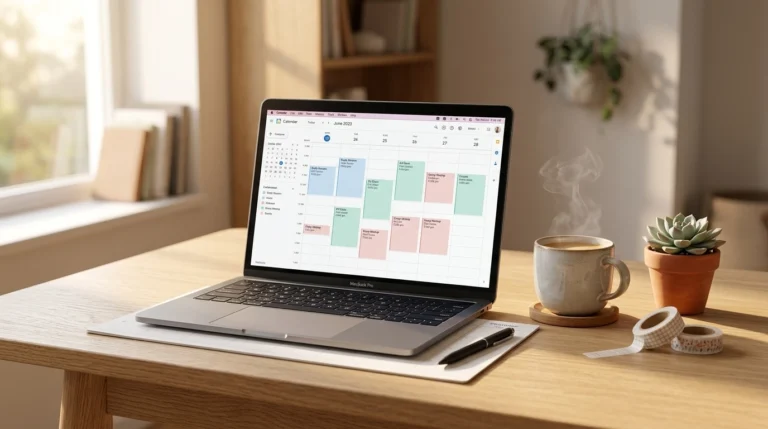
The easiest way to integrate these two tools is through the official Notion Calendar app (formerly Cron). This is the "native" way to see your Google Calendar events directly alongside your Notion databases.
Step 1: Download and Link
First, download the Notion Calendar app on your desktop or mobile device. Sign in using your Google account that holds your primary calendar. This immediately pulls in all your scheduled classes, meetings, and personal events.
Step 2: Connect Your Notion Databases
Once your Google Calendar is visible, you can click "Add Notion Database" in the sidebar. Select your main "Assignment Tracker" or "Course Schedule" database.
Step 3: Map Your Dates
For your Notion items to show up on the calendar, they must have a Date Property. Once linked, you can drag and drop your Notion tasks directly onto your Google Calendar time slots.
Essential Benefits of This Method:
- Dual Visibility: You can see your 2:00 PM Chemistry lab and your midnight essay deadline in the same view.
- Bi-directional Editing: If you move a task in Notion Calendar, the date property in your Notion database updates automatically.
- Free for Students: This method doesn't require any expensive third-party subscriptions.
Embedding Your Calendar for an Aesthetic Dashboard

If you prefer to stay entirely within the Notion interface rather than using a separate calendar app, embedding is your best friend. This is perfect for those who love a minimalist or aesthetic workspace.
To embed your Google Calendar:
- Go to your Google Calendar settings on your desktop.
- Find the "Integrate calendar" section and copy the Public URL to this calendar (make sure your calendar is set to public, or use the "Secret address in iCal format" for private viewing).
- In Notion, type
/embedand paste the link.
Why Use an Embed?
- Dashboard Integration: You can place your calendar right next to your Note-Taking templates for a truly "all-in-one" feel.
- Visual Consistency: It keeps your aesthetic workspace cohesive.
- Quick Reference: It’s great for a "Read-Only" view of your week while you're deep in a study session.
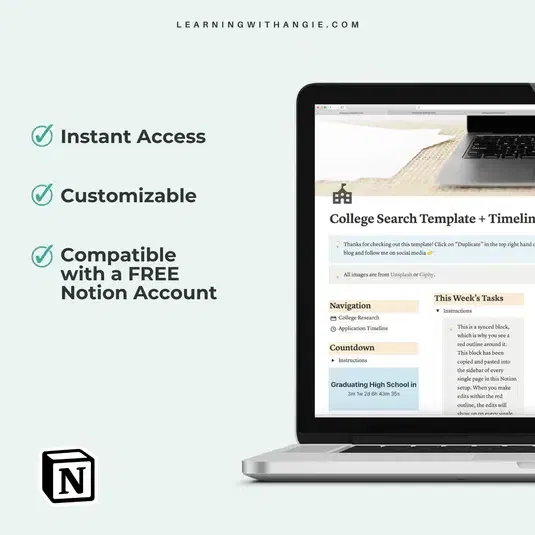
If you’re preparing for the next big step in your academic journey, our Notion College Search Template is a perfect example of how an integrated dashboard can keep you organized without the stress.
Two-Way Sync With Automation (For the Power User)
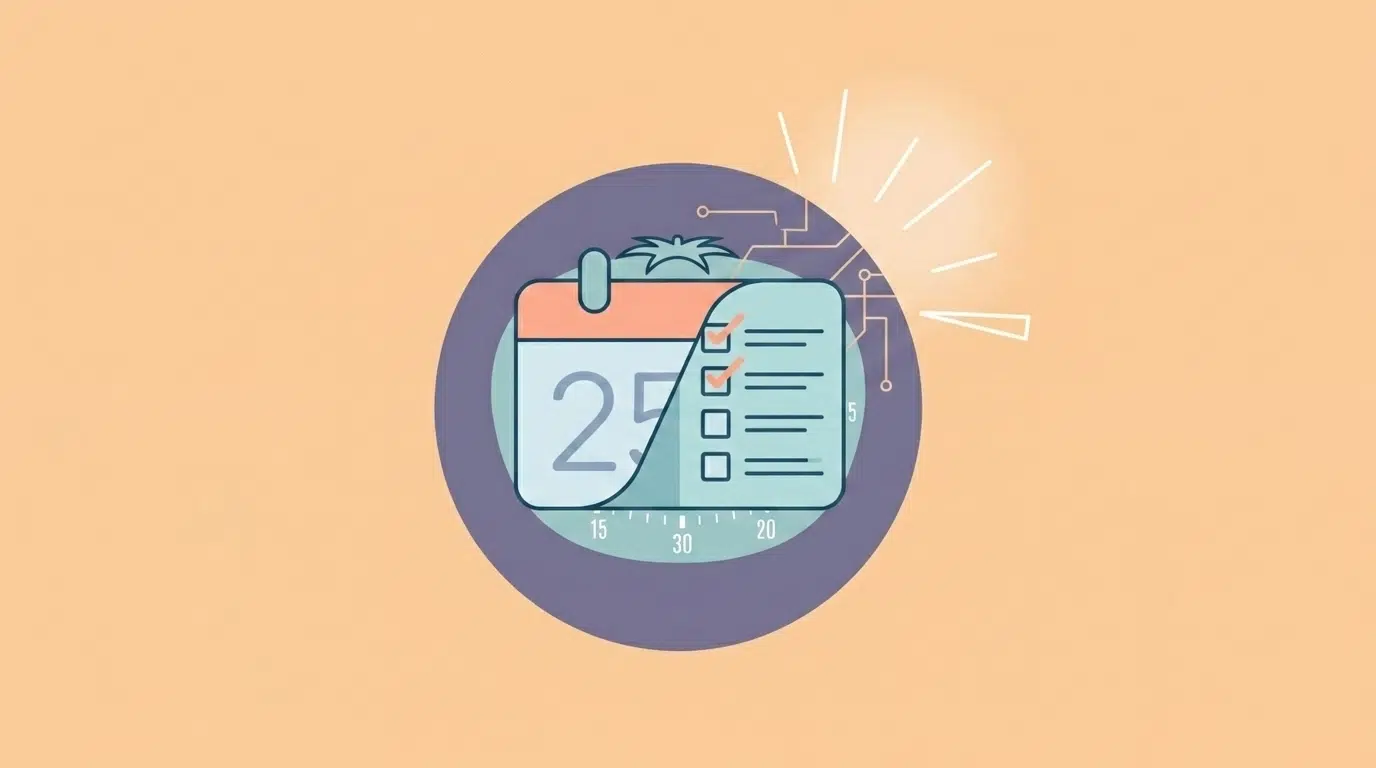
For students who want a truly "hands-off" experience, you can use third-party automation tools like Zapier or Make. These tools act as a bridge between Notion and Google Calendar, performing actions automatically based on "triggers."
Example Workflow:
- Trigger: You add a new assignment to your Notion "Task List."
- Action: Zapier automatically creates a new event in your Google Calendar for that specific date and time.
Key Features to Look For:
- Automatic Syncing: No manual dragging and dropping required.
- Detailed Mapping: You can tell the automation to include the Notion page link in the Google Calendar event description, so you can jump straight to your notes from your phone's calendar app.
- Complexity Management: This is "essential" for students with high-volume schedules, like those in College or University.
While these tools often have a learning curve, they streamline your workflow so you can spend less time planning and more time actually studying.
Best Practices to Keep Your Stack Efficient
Having the tools is only half the battle; using them correctly is what actually leads to success. To keep your stack "lean," you should follow these rules:
- Don't Over-Automate: Only sync what you actually need to see. If you sync every single tiny sub-task, your calendar will become a cluttered mess. Focus on major deadlines and time-blocked study sessions.
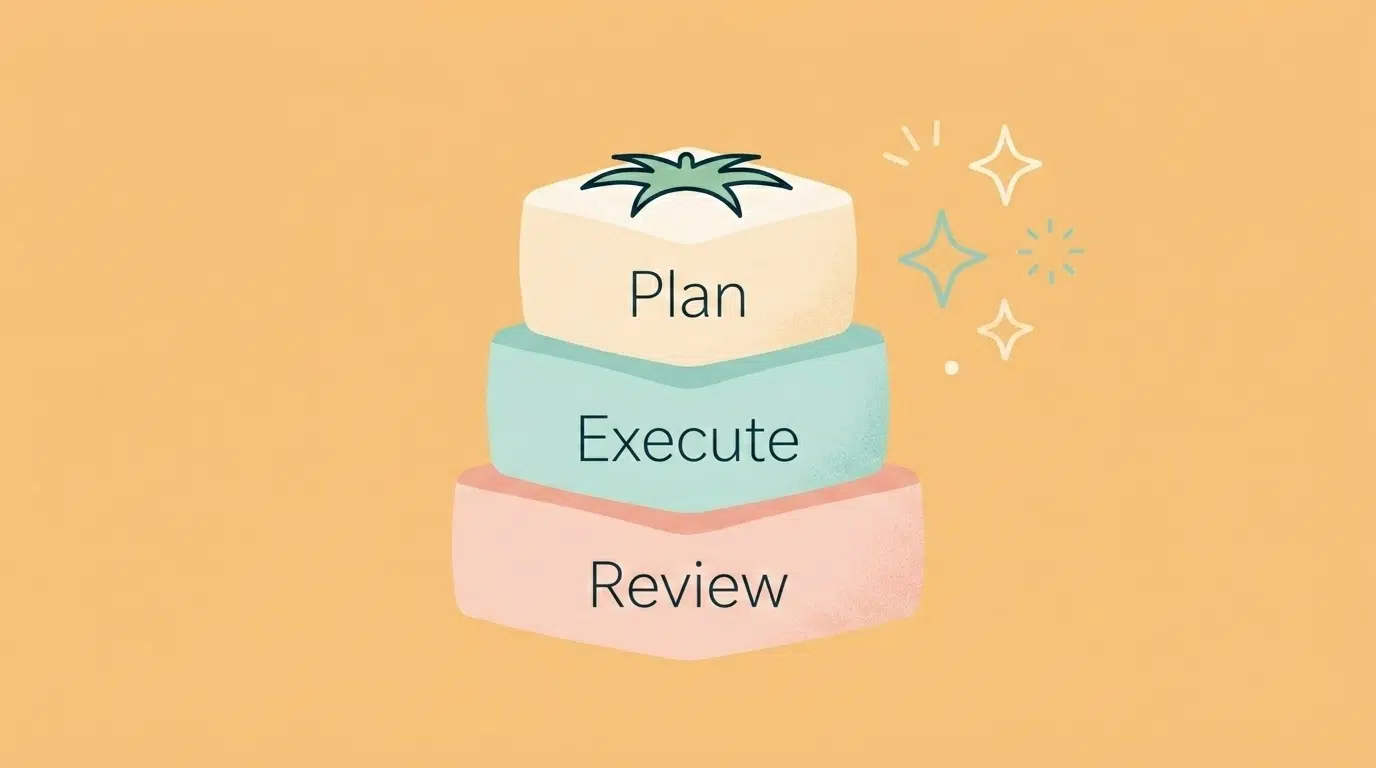
- Use the Pomodoro Technique: Once your calendar tells you when to study, use tools like a Pomodoro timer to manage how you study.
- Review Biweekly: Every two weeks, take ten minutes to clean up your Notion databases. Delete completed tasks and ensure your calendar for the upcoming fortnight is accurate.
- Keep it Simple: The goal of a lean stack is clarity. If a feature is making your life harder, effective students know when to cut it out.
Collaborate and Grow

Productivity doesn't have to be a solo sport. One of the best ways to stay accountable is to share your integrated workspace with a study buddy or a parent. Notion makes it incredibly easy to share specific pages or databases.
When you integrate your calendar, you can also share your "Availability" with others using Notion Calendar’s scheduling features. This is a game-changer for group projects or when you're trying to coordinate home life with a busy high school schedule.
- Peer Learning: Share your assignment tracker with a classmate so you can both stay on top of due dates.
- Parental Transparency: For high schoolers, sharing a high-level view of your calendar with your parents can help reduce the "Did you do your homework?" nagging.
- Community Support: Join a community of like-minded students who are all striving for better grades and better life skills.
Ready to Streamline Your Life?
Building a productivity stack isn't about finding the "perfect" app: it's about creating a system that supports your unique brain. By integrating Notion and Google Calendar, you're taking a massive step toward personal growth and academic excellence.
Join The Community today to receive more actionable tips, tested resources, and biweekly updates designed to help you master the student experience. Whether you're looking for study techniques or life skills education, we're here to help you implement tools you can use immediately.
Ready to become the most organized version of yourself? Your "lean" future starts with a single sync.
Want a head start? The All-in-One Student Notion Dashboard 2.0 in my shop was made for exactly this — it’ll save you a ton of time.