Notion Vs Google Calendar: Which Is Better For Your Chaotic Study Schedule?
Does your current study schedule feel like a game of Tetris where you’re constantly losing? Between the surprise biology quiz, your part-time job shifts, and trying to maintain a social life that isn't just "seen at 2 AM," the struggle is real. You need a system that actually works, but you're stuck in the ultimate productivity debate: Notion vs. Google Calendar.
One is the king of organization and "the aesthetic," while the other is the reliable MVP of time management. If you’re searching for the best student productivity hacks, choosing the right tool is your first step toward sanity.
Let’s break down which one will actually help you survive finals week without a meltdown.
Google Calendar: The King of Time Blocking
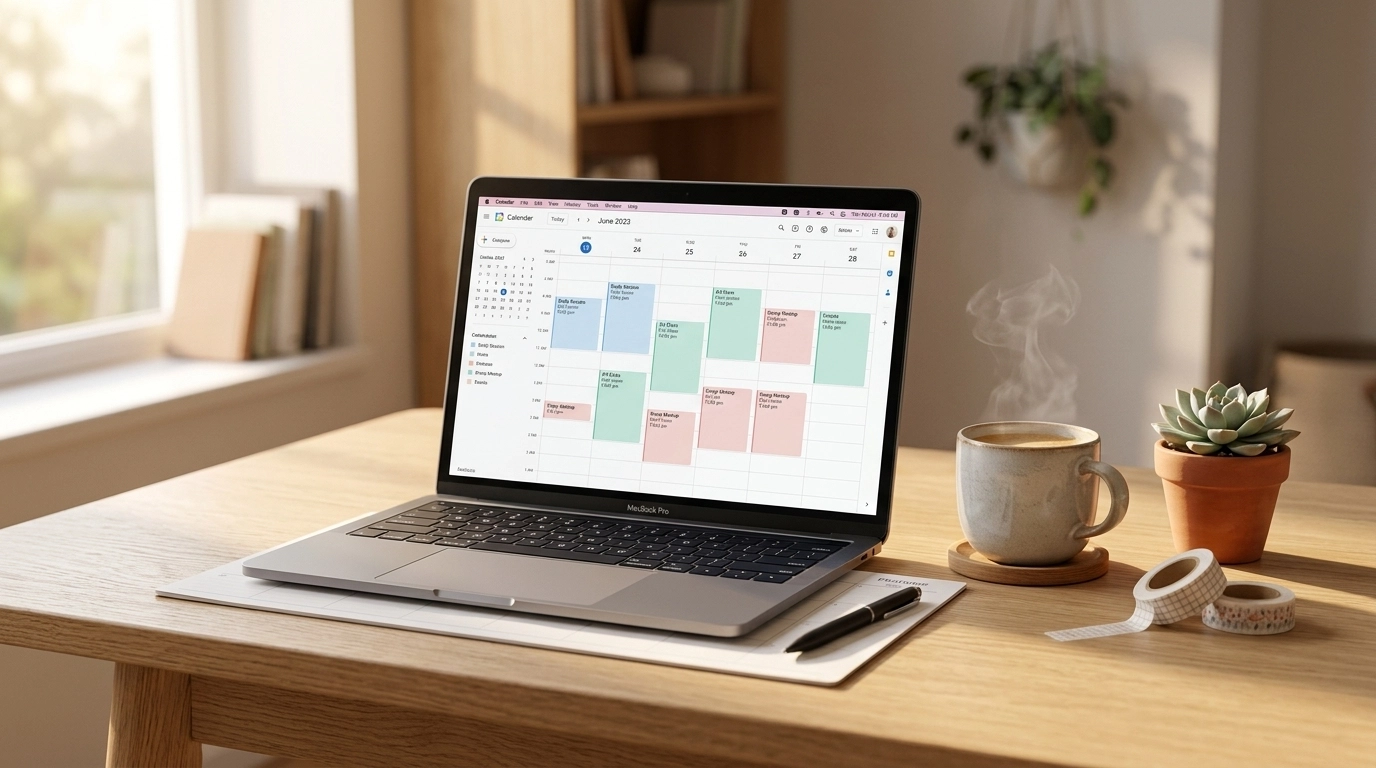
If you need to know exactly where you need to be in the next ten minutes, Google Calendar (GCal) is your best friend. It’s built for speed and reliability. For high schoolers and college students who are constantly on the move, GCal is the ultimate "set it and forget it" tool.
- Lightning-Fast Scheduling: You can drop an event into your day in seconds. No need to worry about "databases" or "blocks", just click, type, and move on.
- Reliable Notifications: Let’s be honest, you’ve probably forgotten a club meeting or a tutor session before. GCal’s mobile alerts are aggressive in the best way possible, making sure you actually show up.
- The Power of Time Blocking: This is one of the most essential study tips for high schoolers. By carving out specific "blocks" of time for deep work, you stop wondering what to do next and start doing it.
- Seamless Integration: Since most schools use Google Workspace, your class schedule can often be imported with a single click.
GCal is functional, but is it pretty? It’s… fine. It’s clean, but it lacks that "main character energy" that makes you want to stare at your schedule for hours.
Notion: The All-In-One Aesthetic Workspace
If GCal is a simple digital planner, Notion is an entire architect’s studio. It’s where your notes, your deadlines, and your life goals live in one beautiful, interconnected hub. For students who care about the "vibe" as much as the grade, Notion is the gold standard.

- Integrated Everything: In Notion, your calendar isn’t just a grid of dates. Each "event" is a page. That means your "History Study Session" can contain your lecture notes, a link to a Quizlet, and your essay draft all in one place.
- Ultimate Aesthetic Freedom: Want your dashboard to match your favorite lo-fi playlist? You can add custom icons, cover photos, and widgets to make your workspace feel like home. This makes you actually want to stay organized.
- Multi-View Magic: You can view your tasks as a calendar, a kanban board (like Trello), or a simple list. This flexibility is a total game-changer for managing long-term projects like college applications.
- Check out our Notion College Search Template to see how powerful this tool can be for organizing your future.
The downside? Notion has a bit of a learning curve. If you’re the type of person who gets distracted by choosing the perfect emoji for ten minutes, you might find yourself doing "productive procrastination."
Which One Actually Saves Your Grades?
Ready to decide? Let’s look at how these tools stack up in the real-world chaos of student life.

Choose Google Calendar if:
- You want a simple, no-fuss way to track your class times and deadlines.
- You rely heavily on phone notifications to keep you on track.
- You need to sync schedules with friends or family easily.
- Your goal is strict time management and blocking out every hour of the day.
Choose Notion if:
- You want to centralize your life, from class notes to habit trackers.
- You love customizing your digital space to stay motivated.
- You are managing complex projects (like an AP research paper or college apps) that need more than just a date.
- You prefer a visual layout that shows your progress over time.
Pro Student Productivity Hack: The Hybrid Method
Here’s a secret: most successful students don't pick just one. They use a hybrid system to get the best of both worlds.
- Google Calendar for "Where": Use GCal to track your "hard" commitments: classes, work shifts, and appointments. This gives you a clear picture of your free time.
- Notion for "What": Use Notion to track your "soft" tasks: the assignments, the reading lists, and the study goals. When you have a 2-hour gap in GCal, you open Notion to see exactly which task to tackle.
- The Bridge: Many students sync their Notion databases with GCal so they can see their assignment deadlines right alongside their class schedule.
By combining these, you streamline your workflow and ensure that nothing falls through the cracks. For more advanced strategies, check out our guides on Productivity Hacks.
Study Tips for High Schoolers: Making It Stick
No matter which tool you choose, a calendar is only as good as the habits behind it. If you want to enhance your academic performance, you need to pair your digital tools with proven techniques.

- The 5-Minute Rule: If a task takes less than five minutes (like emailing a teacher or checking a grade), do it immediately instead of putting it on your calendar.
- Color-Code Everything: Assign a specific color to each subject. Highlighting Biology in green and Math in blue makes your schedule instantly readable.
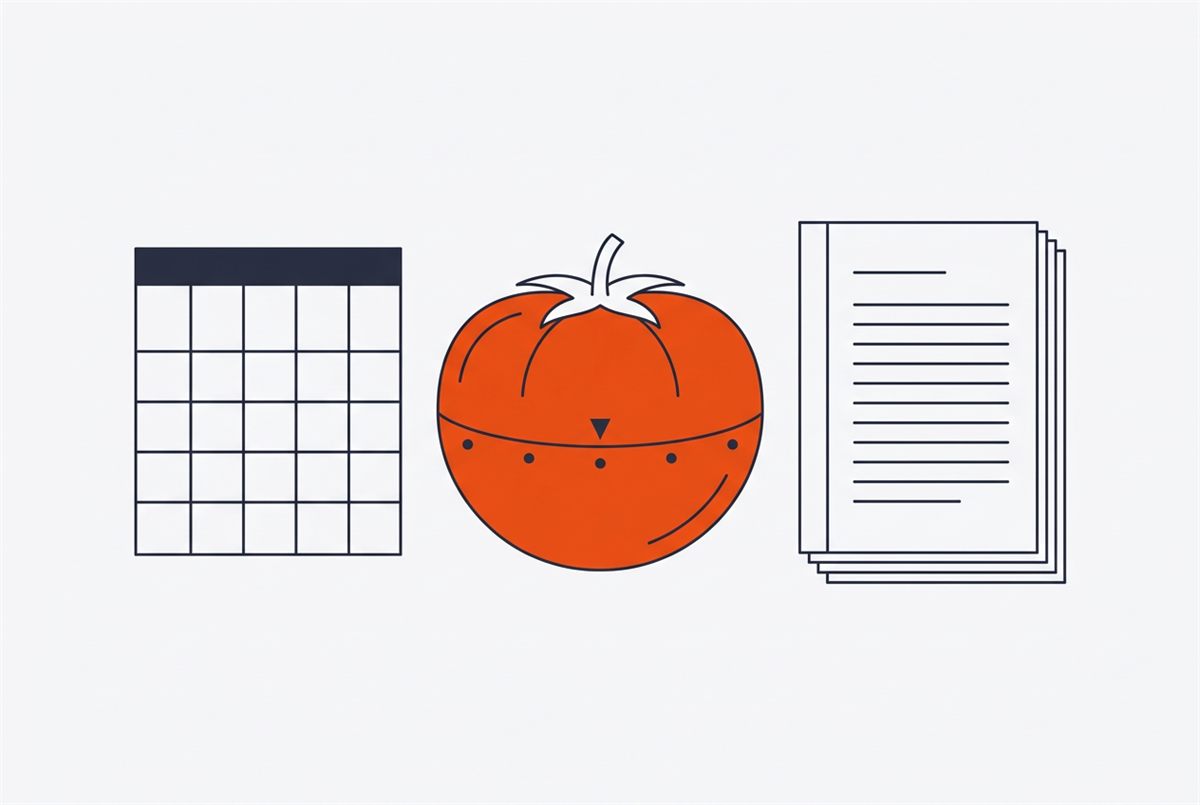
- The Pomodoro Technique: Use a timer to stay focused. Study for 25 minutes, then take a 5-minute break. This prevents burnout and keeps your brain fresh.
- Review Your Week: Every Sunday, spend 10 minutes looking at your calendar. What’s coming up? Where are the "crunch" times? To keep everything in order, proactive planning is your best defense against stress.
Ready to Master Your Schedule?
Your study schedule doesn’t have to feel like a second job. Whether you love the minimalist speed of Google Calendar or the creative depths of Notion, the best system is the one you’ll actually use.
Ready to become the most organized version of yourself? We’ve got the resources to help you get there.
- Explore our Study Tips Category for more unfiltered advice on crushing your classes.
- Check out our Academic Writing Tips to streamline your essay-writing process.
Join The Community!
Don’t miss out on our biweekly updates filled with actionable tools, digital planners, and the honest advice you need to succeed in school and life. Sign up for our newsletter and start turning your chaotic schedule into a productivity powerhouse today.
Want a head start? The All-in-One Student Notion Dashboard 2.0 in my shop was made for exactly this — it’ll save you a ton of time.