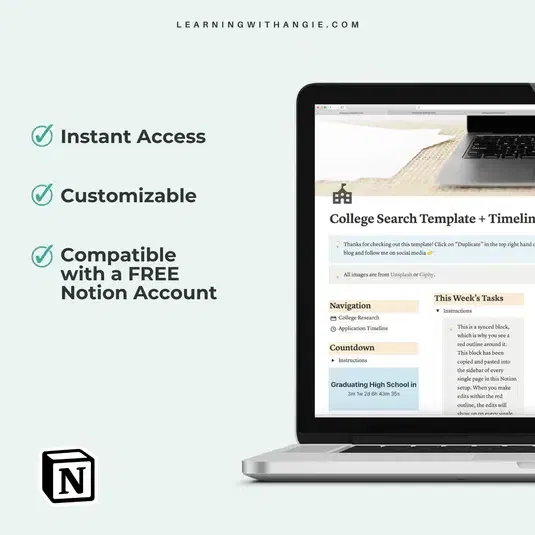
How to Create a Full Semester Assignment Tracker in 5 Minutes Using Notion
Are you feeling overwhelmed by the mountain of syllabi sitting on your desk? Does the thought of tracking three exams, twelve essays, and fifty-two reading assignments make your head spin?
You aren't alone. Most students spend more time worrying about when things are due than actually doing the work. But what if you could offload that mental clutter into a system that does the thinking for you?
Enter Notion.
While it might look intimidating at first, you don't need to be a tech wizard to build a world-class organization system. In fact, you can set up a full-semester assignment tracker in exactly five minutes. By the end of this guide, you’ll have a streamlined, aesthetic, and highly functional hub that keeps you ahead of every deadline.
Ready to become the most organized version of yourself?
Why You Need a Centralized Assignment Tracker
Before we dive into the "how," let’s talk about the "why." Relying on your memory or a scattered paper planner is a recipe for burnout. Using notion templates for college and high school allows you to:
- Reduce Cognitive Load: Stop memorizing dates and start using that brainpower for your actual coursework.
- Visualize Your Workload: See exactly which weeks are "crunch time" so you can plan your social life accordingly.
- Centralize Resources: Keep your assignment instructions, research links, and draft documents all in one place.
- Automate Progress: Use status bars and checkboxes to get that hit of dopamine every time you finish a task.

Phase 1: The Foundation (2 Minutes)
The biggest mistake students make with Notion is over-complicating the setup. You don't need a 50-page workspace; you need one solid database.
Step 1: Create a New Page
Open Notion and click "Add a page" in your sidebar. Name it something inspiring, like "Semester Success Hub" or "Academic Command Center."
Step 2: Add a Database
Type /table and select Table view. When it asks for a data source, click New database.
Step 3: Name Your Columns
By default, you’ll have a "Name" column and a "Tags" column. Let’s customize these immediately to make them useful for your life:
- Name: Change this to Assignment Name. This is where you’ll type "History Essay" or "Bio Lab Report."
- Date Property: Click the
+icon, select Date, and name it Due Date. - Select Property: Click the
+icon, select Select, and name it Subject. Add your classes here (e.g., Math, English, Chemistry). - Status Property: Click the
+icon, select Status. This allows you to track "To Do," "In Progress," and "Done."
Phase 2: Adding Your Assignments (2 Minutes)
Now that your skeleton is ready, it’s time to add the meat. This is where most people get bored, but we’re going to make it fast.
The Syllabus Batch-Input Strategy:
Don't add assignments one by one as they come up. Instead, take 120 seconds to do a "brain dump" from your syllabi. Open all your course documents side-by-side and follow these student productivity hacks:
- Filter by Subject: If you’re entering all your History assignments at once, set a filter so the "Subject" property automatically fills itself in.
- Use Multi-Select for Types: Add a property for Assignment Type (Exam, Quiz, Essay, Homework) to help you prioritize your energy.
- Set Reminders: Within the "Due Date" column, click on a date and select Remind. Notion will ping your phone or laptop a day before the task is due.

Phase 3: Visualizing Your Success (1 Minute)
A table is great for data entry, but it’s not always the best way to see your life. This is where Notion’s "Views" become your best friend.
Create a Calendar View:
Click the + sign at the top of your database and select Calendar. Instantly, your list of assignments transforms into a monthly spread. This is essential to streamline your weekly planning. If you see four icons on next Thursday, you know today is the day to start working.
Create a Board View:
Add another view and select Board. Group it by Status. Now you have a Kanban-style board where you can physically drag assignments from "To Do" to "Done." There is no better feeling than moving a massive term paper into the "Done" column.
Create a "Due This Week" Filter:
To keep things effective and avoid overwhelm, create a duplicate of your Table view and add a filter where "Due Date" is "Within the next week." This keeps your focus sharp on immediate priorities.
Advanced Student Productivity Hacks for Notion
Once you’ve mastered the 5-minute setup, you can enhance your workspace with these pro tips:
- Link to Your Notes: If you use Notion for class notes, use the Relation property to link an assignment directly to the lecture notes it covers.
- Include a Grade Calculator: Add a "Number" property for Grade and a "Number" property for Weight. With a simple formula, you can track your current standing in the class.
- Embed Your Schedule: Use an image block to keep a copy of your college school supplies list or your weekly class schedule right above your tracker.

Why Use Notion Templates for College?
You might be wondering: "Should I build this from scratch every semester?" While building it yourself is a great way to learn the platform, using a professionally designed template can save you hours of troubleshooting.
High-quality templates are built by people who have already tested what works and what doesn't. They include pre-built formulas, aesthetic layouts, and integrated systems that connect your assignments to your high school four-year plan or college graduation requirements.
If you want to skip the setup and go straight to being productive, check out the Notion Template Gallery for student-specific options.
[STOP THE SETUP] Get the One-Click Semester Tracker ($7). Why spend your study hours building databases? Skip the setup and get the exact, aesthetic assignment tracker described in this post. Includes pre-configured Calendar, Board, and Due This Week views. [Get Organized Instantly]
Common Pitfalls to Avoid
Even the best system fails if you don't use it. To ensure your tracker stays essential to your workflow:
- Don't Over-Decorate: It’s tempting to spend three hours picking out icons and cover photos. Stop. Your tracker's job is to help you study, not to be a digital art project.
- The "Daily Check-In": Open your tracker every morning. If it’s not the first tab you open, you will forget it exists.
- Keep it Simple: If a property (like "Estimated Hours") feels like a chore to fill out, delete it. Only track what actually helps you move the needle.
Join The Community
Success in school isn't just about the tools you use; it's about the habits you build and the community you surround yourself with. At Learning With Angie, we believe that every student has the potential to excel when given the right resources.
Are you ready to take control of your academic journey?
- Stay Consistent: Consistency is the secret sauce to better grades and lower stress.
- Get Exclusive Resources: Our biweekly newsletter delivers actionable tips, productivity hacks, and free templates directly to your inbox.
- Master Your Exams: If you're tackling specific challenges, like AP history, our APUSH study plan can give you the edge you need.
Don't let another semester slip through your fingers in a blur of missed deadlines and "all-nighters." Spend five minutes today to save yourself fifty hours of stress later. Your future self will thank you.
Ready to start? Open Notion and build your tracker now.
Want a head start? The All-in-One Student Notion Dashboard 2.0 in my shop was made for exactly this — it’ll save you a ton of time.