Your email inbox shouldn’t be the place where assignment deadlines go to disappear.
Good student email organization means you can spot a professor’s update, find a financial aid message, and ignore the campus pizza coupon in your college email without digging through 847 emails marked unread. You don’t need a color-coded masterpiece that takes longer to maintain than your homework.
Practical digital organization should reduce decisions, not create more of them. You need a small email management system that catches important stuff before it becomes a Sunday-night problem.
This post may contain affiliate links. If you make a purchase through these links, I may earn a small commission at no extra cost to you.
Key Takeaways
- Start with an inbox reset: archive old messages, delete obvious clutter, and unsubscribe from emails you never read.
- Keep your student email organization system small with a few practical labels or folders, such as Action Needed, Classes, and School Admin.
- Use Gmail filters or Outlook rules to sort predictable messages automatically, but test them before trusting them with deadline-related emails.
- Turn important emails into real tasks by replying, adding deadlines to your calendar, filing the message, or removing it when no action remains.
- Check email at planned times, protect study blocks from notifications, and review your important categories during weekly planning.
Start With a Reset, Not Inbox Shame
If your inbox has thousands of unread emails, don’t try to read every single one. That plan sounds responsible, but it’s usually procrastination wearing a productivity hat.
First, use Gmail or Outlook’s search bar to find messages from the current semester. Search for your school name, course codes, professors, student accounts, financial aid, and campus housing. Flag anything that still needs action.
Then deal with the old pile in one focused session.
Try archiving old messages you may need later
Messages from past semesters, receipts, registration confirmations, and course materials can leave your inbox while staying searchable.
Delete obvious spam emails, expired event reminders, and random marketing messages. If you’re nervous about deleting something, archive it instead. Your goal isn’t to erase your academic history. It’s to make today’s inbox usable.
A good cleanup question is: “Would I be upset if this disappeared tomorrow?” If the answer is no, delete it.
Unsubscribe before the clutter returns
Promotional emails are sneaky. One student discount, one club signup, and one free-shipping offer can become a daily parade.
Unsubscribe from messages you don’t read. Keep newsletters that genuinely help you, such as campus career updates or a scholarship bulletin. Everything else can go.
The same principle shows up in these email productivity tips: fewer unnecessary decisions make it easier to focus on what matters.
An inbox with 20 useful emails is easier to manage than an inbox with 2,000 emails you keep “meaning to sort.”
Build a Student Email Organization System You Can Maintain
Your labels or email folders should answer one question fast: where does this message belong?
Don’t make 37 categories. You are not building a tiny library system for your inbox. Start with four to six places that match your real life.
Use a simple label structure that matches school life
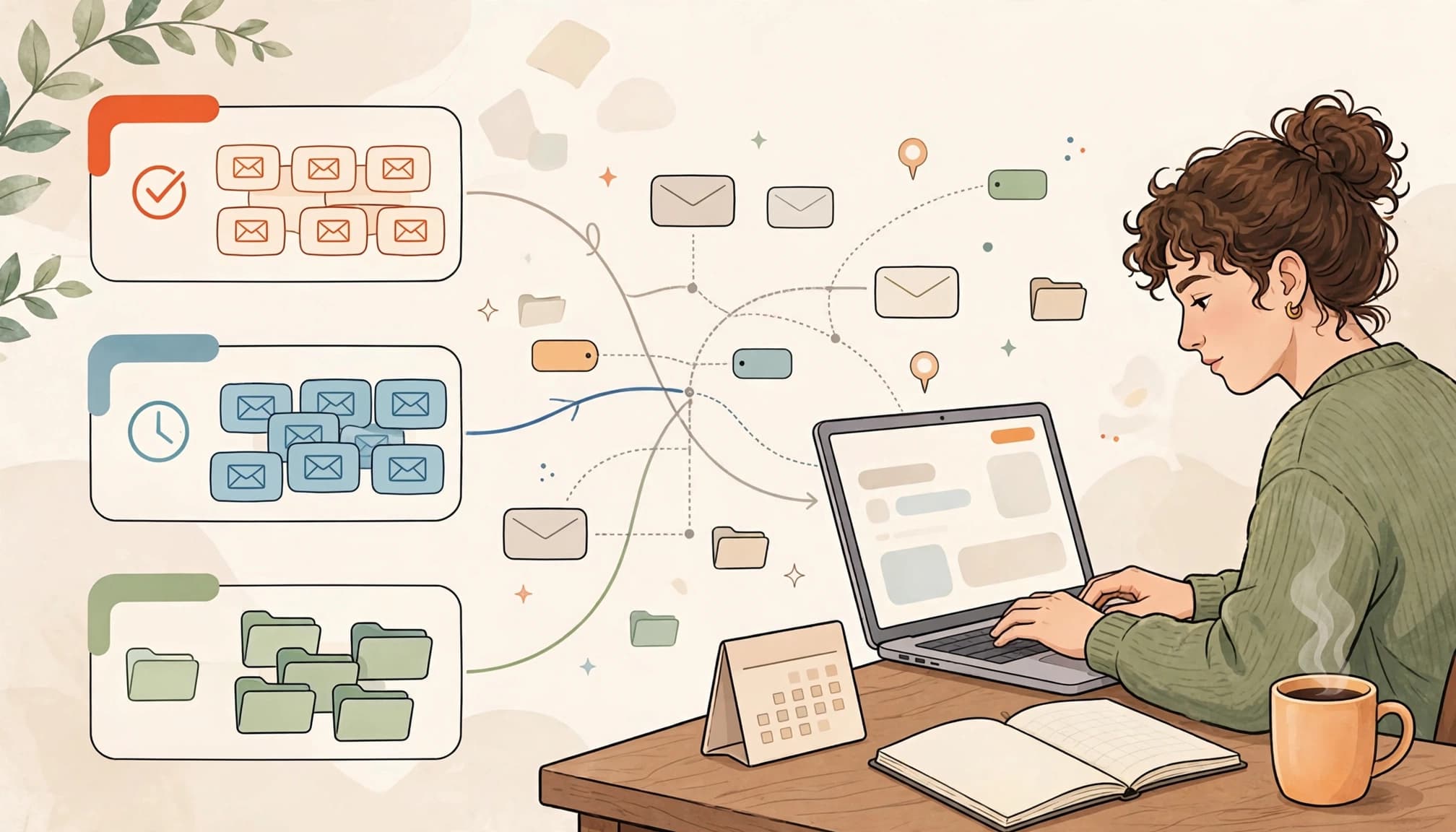
A practical structure might look like this:
- Action Needed for messages that require a reply, form, payment, or task.
- Classes for professors, course announcements, and group-project messages.
- School Admin for registration, tuition, financial aid, housing, and advising.
- Career and Opportunities for internships, jobs, scholarships, and networking.
- Receipts and Accounts for textbook orders, software receipts, and account notices.
- Read Later for newsletters or articles that are interesting but not urgent.
Together, these six categories create a shared system for common college workflows. You can expand this label structure to one folder or label per class if your course load makes that helpful. For four classes, that can work great. For eight different categories inside every class, not so much.
Gmail labels and Outlook folders are not the same
Gmail and Outlook are different email clients, so their organization mechanics aren’t identical.
Gmail uses labels. One email can have more than one label, which is handy when an internship message also needs action.
Outlook focuses more on email folders. A message generally has one primary folder, much like putting a paper into a filing drawer. Both systems work. They simply organize mail differently.
Google’s Gmail inbox tips show how labels and filters can work together. In Outlook, folders pair with rules that sort messages as they arrive.
Use the names that make sense to you. “Important School Stuff” may be less polished than “Administrative Correspondence,” but it is also much easier to understand when you’re tired.
Set Up Email Rules That Catch Routine Messages
Email rules are where your system starts saving real time. Build an automation system that tells your email provider what to do with repeat messages, so you aren’t sorting every message by hand.
Start with boring, predictable mail. Do not automate messages from a new professor before you know how they communicate.
Create two or three email filters first
In Gmail on a computer, use the search options in the search bar to choose a sender or subject line, then create a filter. These email filters can apply a label, archive a message, star it, or mark it as read. Use your existing label structure rather than creating new categories for every sender. The exact buttons may shift as Gmail updates its interface, but the basic process stays the same.
Try filters for:
- Course-platform notifications that should go into your Classes label.
- Receipts that should go into Receipts and Accounts.
- Campus events and newsletters that should skip your main inbox and land in Read Later.
For more ideas, this guide to useful Gmail filters has practical examples you can adapt to school email.
Use Outlook rules for repeat senders
In Outlook, create a rule that moves messages from a sender into a folder. For example, email rules can send messages from your university billing office to School Admin, keeping your college email organized. Messages from Handshake or a campus career center could go to Career and Opportunities.
Microsoft explains how incoming messages can be handled through Outlook inbox rules. Rule behavior can vary by email client, device, account type, and Outlook version.
If you use a Gmail, Yahoo, or iCloud address inside new Outlook, Microsoft notes that rules have more limits. In that email client, check that your test rule works before trusting it with deadline-related messages.
Try plus addressing for signups
Plus addressing can help you track where mail came from when your school uses Gmail or Google Workspace. For a scholarship site, plus addressing lets you use yourname+scholarships@gmail.com.
Mail still arrives in your normal inbox through the modified email address, but you can filter messages sent to that version of your address into a scholarship label. Use plus addressing for stores, newsletters, and online tools, not for a professor or an official university form that might reject the altered email address.
Plus addressing is optional. If it feels confusing, skip it. A simple system you use beats a clever system you abandon by Thursday.
Turn Important Emails Into Real Tasks
An email inbox isn’t a to-do list. It’s a delivery truck.
The moment you open an email about a paper deadline, a meeting, or a payment, decide what happens next. Leaving it marked unread isn’t a plan. It’s a tiny stress bomb with a subject line.
Follow the quick decision rule
When you read an email, choose one of four actions:
Use this simple email management habit for every message: reply, calendar, file, or remove.
- Reply if it takes under two minutes.
- Add the task or deadline to your calendar or planner.
- Move it to the right label or folder for reference.
- Archive or delete it when no action remains.
For example, a college email from your professor says a lab report is due Friday at 11:59 p.m. Put the deadline on your schedule immediately. If the assignment will take four hours, don’t only write “Lab report.” Break it into smaller blocks, such as outline, draft, revision, and submission.
A to-do list is a wish list until each task gets a home on your calendar.
Keep an Action Needed label small
Your Action Needed label should contain only emails you haven’t handled yet. Once you reply, submit the form, or calendar the deadline, move the message out.
Think of it like the front counter at a busy coffee shop. If every old order stays there, nobody can see what needs attention now.
This is also a more realistic version of inbox zero. Inbox zero doesn’t mean you never receive email. It means messages aren’t sitting in your inbox because you haven’t decided what they mean.
Protect Study Time From Email Distractions
Checking email every time your phone buzzes breaks your focus faster than you think. One message becomes a reply, then a calendar check, then somehow you’re comparing dorm rugs at 2:14 p.m. It happens.
Schedule two college email check-ins in your day.
Use two email check-ins
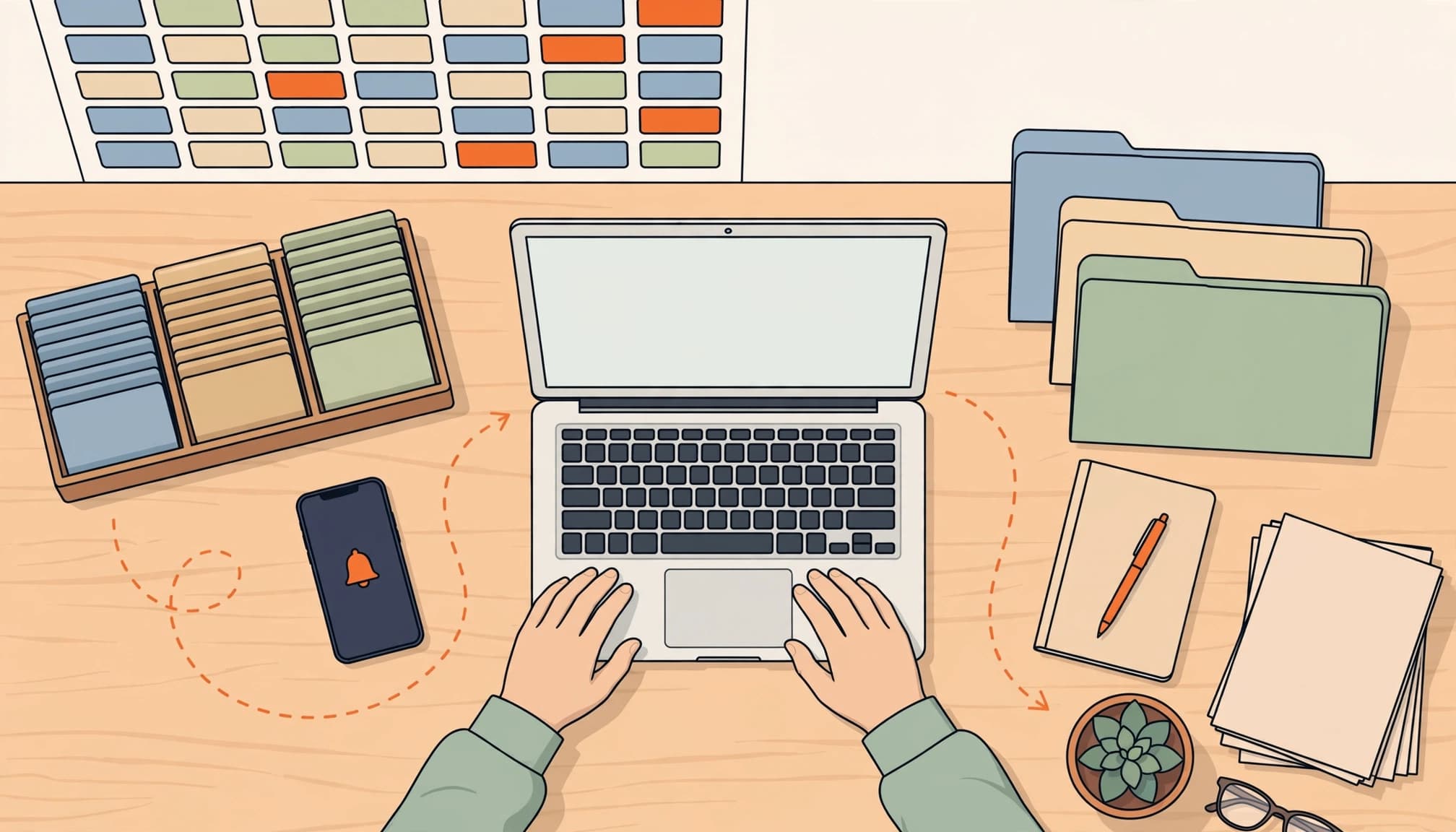
Try checking your campus account once in the morning and once later in the afternoon. Each check-in can take 10 to 15 minutes.
During a deep study block, turn off email notifications. Put your phone across the room, tuck it into your backpack, or switch on Do Not Disturb. You don’t need superhuman discipline. You need distractions to take one extra step.
If you expect a time-sensitive reply from a professor, check more often that day. The system should support your real routine, not trap you in rigid rules.
Pair email with your weekly planning session
Once a week, make email management part of your planning session. Scan your Classes, School Admin, and Career and Opportunities categories. Add future deadlines to your planner, check for forms due soon, and clear out completed tasks.
This takes less time than rescuing a missed scholarship deadline. It also works well with time blocking because you can assign actual work sessions to upcoming assignments.
Make Your Email Inbox Easier to See and Use
Low vision, ADHD, dyslexia, migraines, and plain old screen fatigue can make email feel harder than it should. An organized inbox helps, but the display needs to work for your eyes and brain too.
Make visual changes that reduce friction
In Gmail or Outlook, increase text size and browser zoom until you can read without squinting. Use adequate contrast if light gray text disappears for you. Choose labels and folders with clear names rather than relying only on color.
If you use a screen reader, keep labels and folders short and predictable. A clear label structure is easier to scan, remember, and navigate with assistive technology. “BIO 101” is easier to hear and find than “Messages for Biology Class That I Should Probably Read.”
Keyboard navigation can also cut down on mouse movement. Learn one or two shortcuts at a time, such as archive and search. You don’t need to memorize a secret codebook.
Let Focused Inbox help, but don’t trust it blindly
Outlook’s Focused Inbox feature separates likely important messages from other mail. It can be useful, especially when campus newsletters pile up.
Still, check the “Other” tab during your weekly review. Automated sorting is helpful, but it can misread a message that matters.
Frequently Asked Questions
How many email folders or labels should a student use?
Start with four to six categories that match your actual school life. A small system is easier to maintain than dozens of folders that make every message harder to place.
Should I delete old college emails?
Delete obvious spam, expired reminders, and messages you would not miss if they disappeared. Archive academic records, receipts, registration confirmations, and anything you may need to search for later.
What is the best way to handle assignment deadline emails?
Add the deadline to your calendar or planner as soon as you read the message. If the assignment requires several hours, break it into smaller work sessions instead of saving only a vague task like “finish paper.”
How often should I check my student email?
For most students, checking once in the morning and once later in the afternoon is enough. Check more often when you are expecting a time-sensitive reply, and turn off notifications during focused study blocks.
Do email filters and rules replace weekly inbox reviews?
No. Filters and rules handle predictable messages, but they can sort something incorrectly or miss an important update. Review your key categories once a week and check places such as Outlook’s Other tab.
Your Inbox Can Stay Calm All Semester
The best college email system stays calm and small enough to use during midterms, finals, and weeks when everything is due at once.
Clear out old clutter, keep a few useful categories, automate predictable mail, and put deadlines somewhere you will actually see them. Your inbox does not need to look perfect. It needs to help you find the next thing to do.
A clean inbox won’t write your paper for you, sadly. But it will make sure you know the paper exists, and that is a pretty solid start.